Installing
The Analysis ToolPak add-in is not loaded by default but should be installed as part of the normal Excel installation.
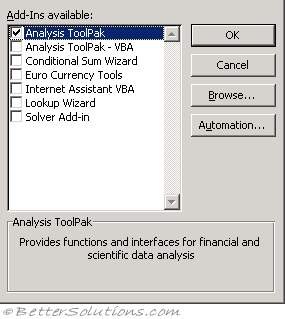
To load this add-in select (File > Options > Add-ins).
At the bottom next to Manage, select Excel Add-ins and press Go.
Select the add-in called Analysis ToolPak and press OK to install it.
 |
For more details on how to install an Excel add-in, please refer to the Add-ins section.
When this add-in is installed you will see an additional "Analysis" group added to the end of your Data tab.
The Data tab has a lot of groups already, so it will be very hard to see this new group.
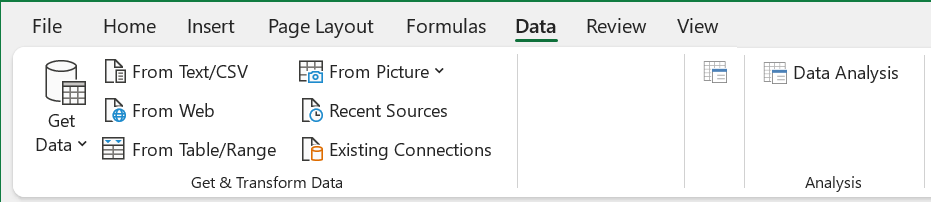 |
Data Analysis - Displays the Data Analysis dialog box.
Add-in Location
Excel 365 - C:\Program Files\Microsoft Office\Office15\Library\Analysis\PROCDB.XLAM | FUNCRES.XLAM | ANALYS32.DLL
Excel 2024 - C:\Program Files\Microsoft Office\Office15\Library\Analysis\PROCDB.XLAM | FUNCRES.XLAM | ANALYS32.DLL
Excel 2021 - C:\Program Files\Microsoft Office\Office15\Library\Analysis\PROCDB.XLAM | FUNCRES.XLAM | ANALYS32.DLL
Excel 2019 - C:\Program Files\Microsoft Office\Office15\Library\Analysis\PROCDB.XLAM | FUNCRES.XLAM | ANALYS32.DLL
Excel 2016 - C:\Program Files\Microsoft Office\Office15\Library\Analysis\PROCDB.XLAM | FUNCRES.XLAM | ANALYS32.DLL
Remember
There are actually two possible add-ins that can be installed relating to Analysis-ToolPak.
The add-in called Analysis-ToolPak - VBA is only needed if you are going to call the worksheet functions from VBA.
© 2026 Better Solutions Limited. All Rights Reserved. © 2026 Better Solutions Limited TopPrevNext