Application.InputBox
If you want to obtain information from the user you can use the Excel's InputBox Function.
This function is not to be confused with the built-in VBA.InputBox function.
There are two advantages that this function has over the VBA function:
● You can specify the datatype that is returned.
● You can detect when the Cancel key is pressed. If the Cancel button is pressed False is returned.
If you assign the return value to a Variant datatype you can easily test if this value is False.
If you just type InputBox without the Application prefix you will be using the VBA function and not the Excel one.
The value returned from the VBA function is always a string.
sReturn = InputBox("InputBox Prompt")
Return = InputBox(prompt [, title] [, default] [,left] [,top] [, helpfile, context] [,type])
| prompt | Required. String expression containing the message to be displayed. The maximum length of a single line prompt is approximately 1024 characters, depending on the width of the characters used. You can create a multi line message by using the carriage return character vbCrLf (Chr(13)), a linefeed character (Chr(10)), or carriage return-linefeed character combination (Chr(13) & Chr(10)) between each line. |
| title | Optional. String expression displayed in the title bar of the dialog box. If you omit title, the application name is placed in the title bar. |
| default | Optional. String expression displaying a pre-filled value for the input field. |
| left | Optional. Long. Used for screen positioning of the dialog (twips). |
| top | Optional. Long. Used for screen positioning of the dialog (twips). |
| helpfile | Optional. String expression that identifies the Help file to use to provide context-sensitive Help for the dialog box. If helpfile is provided, context must also be provided. |
| context | Optional. Numeric expression that is the Help context number assigned to the appropriate Help topic by the Help author. If context is provided, helpfile must also be provided. |
| type | Optional. Numeric specifying the type of data you are expecting. You can specify if more than one data type is to be returned by using the sum of the corresponding type values. 0 - Formula 1 - Number 2 - Text (default) 4 - Logical (True/False) 8 - Cell Reference (Range object) 16 - Error value 64 - Array of values |
Example 1 - String
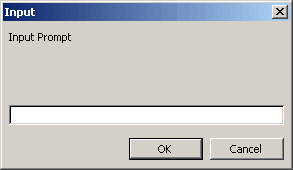
If no type is specified then a string datatype is returned.
If you press Cancel then the boolean value False is returned.
Dim vReturn As Variant
vReturn = Application.InputBox("InputBox Prompt")
If vReturn = False Then
End If
 |
Example 2 - Formula
This will accept any type of value.
vReturn = Application.InputBox("InputBox Prompt", , , , , , , 0)
Example 3 - Numbers
This will only accept numbers
vReturn = Application.InputBox("InputBox Prompt", , , , , , , 1)
Example 4 - Cell Reference
The user can point to cells with the mouse or type in a range directly.
The default value that is displayed is the address of the current selection.
Because this is an object you must use the Set statement to assign the range object to the returned object.
If the user clicks the Cancel button then False is returned which means the Set statement will fail generating an error.
Is Cancel is not pressed then the internal type checking of the InputBox function will guarantee a valid Range object.
The On Error Resume Next line means that any run-time error is ignored.
Dim objRange As Range

On Error Resume Next
Set objRange = Application.InputBox("InputBox Prompt", , , , , , , 8)

If objRange Is Nothing Then
   Call Msgbox("No Range selected")
Else
   objRange.Select
End If
vReturn = Application.InputBox("InputBox Prompt", , , , , , , 8)
C# VSTO
In VSTO this would be:
objRange = Ctype(Application.InputBox("InputBox Prompt", , , , , , , 8),Excel.Range)
© 2026 Better Solutions Limited. All Rights Reserved. © 2026 Better Solutions Limited TopPrevNext