Auto Fill
Auto Fill allows you to automatically populate your cells with a sequence or list as well as letting you quickly copy values to adjacent cells.
You can save time by using this feature to complete a series of labels or numbers on your worksheet.
This allows you to create a series of fixed or incremental values on a worksheet by dragging the fill handle with the mouse.
Using Auto Fill is an alternative to entering repetitive data when it follows in a sequence.
Both numbers as well as text can be entered automatically and it can also be used to extend formulas as well as formatting.
You can use the Auto Fill feature with your Mouse or by using the Fill menu.
Excel can also work with patterns of text if your labels contain both text and numbers the text remains static but the numbers will increment.
You can establish any kind of pattern and use this feature to repeat the text either down a column or across a row.
You can also use Auto Fill to create similar types of formulas.
When you drag a cell containing a formula the formula will be modified automatically.
Fill Menu
The Fill menu provides you with several options for automatically populating your cells.
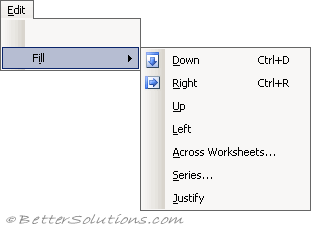 |
Down - Copies both the values and the formats from the first row of cells in the selected range down to the cells below.
Right - Copies both the values and the formats from the first column in the selected range to the cells to the right.
Up - Copies both the values and the formats from the last row of cells in the selected range up to the cells above.
Left - Copies the values and the formats from the last column of cells in the selected range to the cells to the left.
Across Worksheets -
Series - Displays the Series dialog box to let you populate the selected range of cells with a series of values. The contents of the first row or column in the selection are used as the starting values for the series.
Justify - This splits the current cell entry and distributes it into two or more adjacent rows. This is the only option that actually changes the contents of the cell. Redistributes the text contents of cells to fill the selected range. Numbers or formulas cannot be filled and justified. Except for the left column, cells in the range should be blank.
Flash Fill - (Added in 2013). Fills the range with the values based on a pattern that has been identified.
Using The Mouse
Every time you select a cell (or range of cells) you should see a small black square in the bottom right hand corner of the selection.
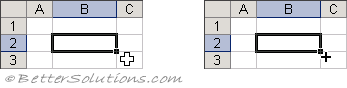 |
This black square in the bottom right corner is referred to as the Fill Handle.
When you place the mouse over this fill handle the cursor changes to a small black cross.
You can drag this handle with the left or right mouse buttons.
Instead of dragging the fill handle with the left mouse button you could alternatively drag it with the right mouse button.
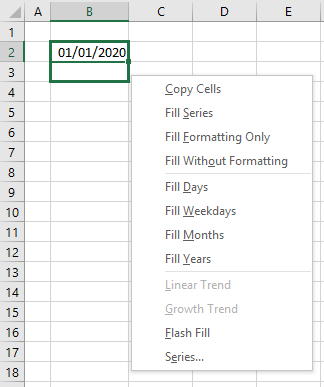 |
Copy Cells - Fills the range with a copy of the original cell contents. more
Fill Series - Fills the range with the default series fill.
Fill Formatting Only - Fills the range with the formatting from the original cell contents.
Fill Without Formatting - Fills the range with the default series fill but with no formatting.
Fill Days - Continues by incrementing the value by 1 subsequently adding days to the series.
Fill Weekdays - Same as Fill Days although only weekdays are displayed.
Fill Months - Continues the series by adding months to the series.
Fill Years - Continues the series by adding years to the series.
Linear Trend - Creates a linear series or linear best-fit trend.
Growth Trend - Creates a growth series or geometric growth trend.
Flash Fill - (Added in 2013). Fills the range with the values based on a pattern that has been identified. more
Series - Displays the Series dialog box.
Some commands will often be disabled as it depends on the type of data entered, whether it is numbers, text or dates.
The middle block of fill options will only be available if you enter a date, month or day.
The sequence of values can be controlled by the initial values entered in the first two or more cells.
You can also double click the fill handle to quickly copy relative formulas across a row or down a column.
Dragging the Fill Handle and holding down the Shift key allows you to quickly insert or delete cells.
If you are entering a long list of names with no blank cells between them and you need to insert duplicate values, a quick way to do this is to right mouse click and select Pick from List on the shortcut menu.
This displays a distinct list of all the values currently entered.
Series Dialog
You can fine tune your series after you have dragged the fill handle by displaying the Fill Series dialog box.
The series always starts with the value in the selected cell or first cell when more than one cell is selected.
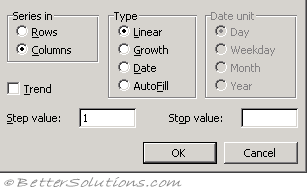 |
Series in - Decides whether the series is to be filled across the page (across the selected columns) or down the page (across the selected rows).
Trend - Calculates a best-fit line (for linear series) or geometric curve (for growth series). The step values for the trend are calculated from the existing values at the top or left of the selection. Any value in the Step value box is ignored if the Trend check box is selected. Excel will calculate the average change between the values already entered and uses that information to calculate a series to populate the remaining cells.
Step Value - Enter a positive or negative number to indicate the amount by which you want a series to increase or decrease. The default value for any series is 1.
Stop Value - Enter a positive or negative number to indicate the value at which you want the series to end. If the selection is filled before the series reaches the stop value, the series stops at that point. If the selection is larger than needed to fill the series, the remaining cells of the selection are left blank. You do not need a value in the Stop value box to fill a series.
Linear - Creates a linear series or linear best-fit trend.
Growth - Creates a growth series or geometric growth trend.
Date - Fills a series with dates. The Date unit options are only applicable when this type of series is selected. The type of date series that is incremented depends on the option selected under Date unit. This is covered in more detail on a subsequent page.
Auto Fill - Fills blank cells in a selection with a series based on data included in the selection. Selecting this option produces the same results as dragging the fill handle to fill a series. Any value in the Step value box and any selected Date unit option are ignored.
Shortcut Keys
(Ctrl + D) - Copies the first cell in the selection downwards
(Ctrl + R) - Copies the leftmost cell in the selection to the right
(Ctrl + ' ) - Enters the formula from the cell directly above into the active cell.
(Ctrl + " ) - Enters the value from the cell directly above into the active cell.
Auto Fill Floating Buttons
This was previously called the AutoFit Smart Tag.
Drag the fill handle with the right mouse button and displaying the Floating Buttons.
These are when the drag the Fill Handle in the bottom right corner of a selection.
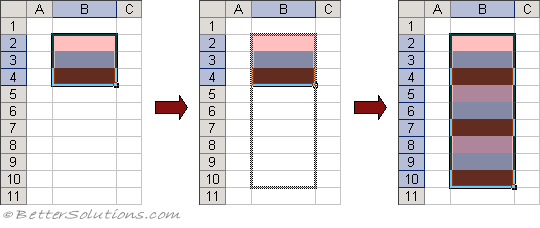
Fill Formatting Only
This feature can be used to copy the cell formats onto other cells.
Format the cells "B2", "B3" and "B4" in a different colour. Drag the fill handle and select Fill Formatting Only
 |
Fill Without Formatting
This allows you to copy just the values that were in the original selection and not the associated formatting.
If more than one cell is selected then the sequence of formatting will be continued.
Format the cells "B2", "B3" and "B4" in a different colour. Drag the fill handle and select Fill Formatting Only
 |
Can it be used to apply alternate shading.
Fill Days
You do not need to enter a sequence of days manually as they will be populated automatically.
The days of the week are one of the built-in custom lists.
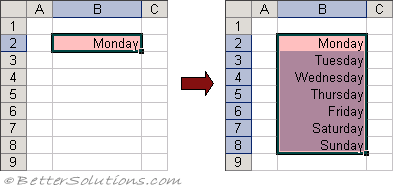
Enter the text Monday into the cell "B2".
Before you press Enter move the mouse position to the bottom right hand corner and drag the cell down with the left mouse button down to cell "B8".
 |
You only need to type in the first value when the sequence has been saved as a custom list.
Fill Weekdays
It is also possible to automatically populate just the weekdays excluding Saturday and Sunday.
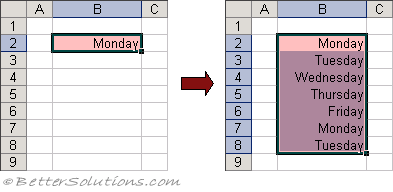
Enter the text Monday into the cell "B2".
Before you press Enter move the mouse position to the bottom right hand corner and drag the cell down with the right mouse button down to cell "B8".
A shortcut menu will appear allowing you to select "Fill Weekdays".
 |
Fill Months
You do not need to enter the days or the months manually as they can be populated automatically using the Auto Fill.
Dates work in exactly the same way as numbers since they are just stored as serial numbers.
Enter the text "Jan" into the cell "B2".
Before you press Enter move the mouse pointer to the bottom right corner and drag the cell down with the left mouse button to cell "B13".
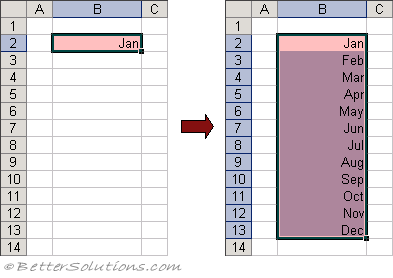 |
You will notice that the value that will be placed in the cell is displayed as a tool tip.
Linear Trend
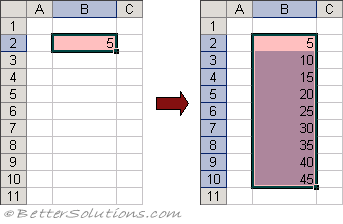
In a linear series each cell differs from the previous cell by a fixed amount.
Adds the "step" value to the starting value and each cell in turn
Creates a linear series or linear best-fit trend. This is selected by default. If the Trend box is cleared, a linear series is calculated by adding the value in the Step value box to each cell value in turn. If the Trend box is selected, the value in the Step value box is ignored, and a linear trend is calculated based on the selected values. The selected original values are replaced with values that fit the trend. This is covered in more detail on a subsequent page.
 |
Growth Trend
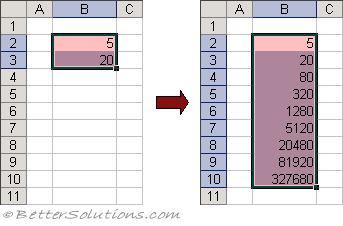
Multiplies the starting value by each value in turn by the step value
Each cell is multiplied by the "step" value.
Creates a growth series or geometric growth trend. If the Trend box is cleared, a series is calculated by multiplying the value in the Step value box by each cell value in turn. If the Trend box is selected, the value in the Step value box is ignored, and a geometric growth trend is calculated based on the selected values. This is covered in more detail on a subsequent page.
 |
Series
Fill Series is the default when this tag is not displayed.
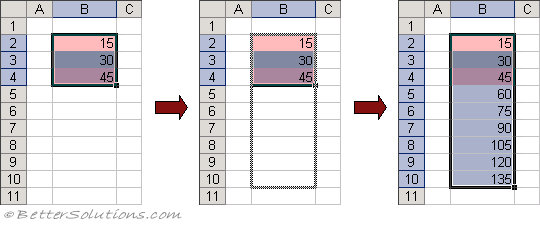
Enter the values 15, 30 and 45 into cells "B2", "B3" and "B4" respectively. Drag the fill handle and select Fill Series.
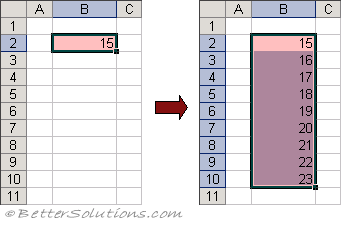
Dragging the Fill Handle down with a single cell selected and holding down the Ctrl key will either increment the values by 1.
Entering the number 15 into cell "B2" and holding down the Ctrl key while dragging the Fill Handle will create the following series:
 |
Dragging the Fill Handle with more than one cell selected will continue the sequence of values in the subsequent cells.
The sequence of values can be controlled by the initial values entered in the two or more cells.
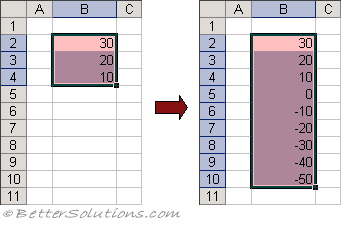
This can be used to quickly enter an incrementing (or decrementing) series of numbers.
Typing the values 15, 30 and 45 into the cells B2, B3 and B4 respectively and dragging the Fill Handle creates the following series:
 |
Only simple series can be entered automatically using the Fill Handle. For more complicated series you can use the Fill Series dialog box.
Remember
Dragging the Fill Handle with a single cell highlighted will copy the value to all the subsequent cells.
Dragging the Fill Handle down with a single cell highlighted and holding down the Ctrl key will increment the values by 1.
Dragging the Fill Handle up with a single cell highlighted and holding down the Ctrl key will decrement the values by 1.
Dragging the Fill Handle with more than one cell highlighted will continue the sequence of values in the subsequent cells.
The Auto Fill options will not be displayed if you have any rows filtered on the active worksheet.
Using the Fill Handle lets you quickly populate cells with either a copy of a value or with the continuation of a sequence.
To create a series of labels that increases by more than one unit, type and enter the first two labels in the series.
If you frequently enter the same data into a worksheet you can speed up the process by creating a custom list.
© 2026 Better Solutions Limited. All Rights Reserved. © 2026 Better Solutions Limited TopPrevNext