Version Changes
DSO File
DSO file can be used to extract built-in and custom document properties without opening the actual Microsoft Office file
DSOFile.dll
This is based on Compount Document file types/formats
MOICE
An enterprise tool that offers some of the security features found in Office 2007 to users of Office 2003
VSTO - Parameterized Properties
VBA has a large number of properties that can accept parameters.
There is no support for properties that accept parameters in C#.
This also includes Indexed Properties
Regardless of which version of C# or Visual Studio you are using, properties that accept parameters are not supported.
If you cannot retrieve or set a property's value directly when using COM Interop, it may be because the property is expecting a parameter.
There are two ways you can get around this problem:
Visual Studio 2010 and Later - You can use Indexer Syntax.
Visual Studio 2008 and Earlier - You can use the Get and Set Acessor Methods.
Properties with Parameters
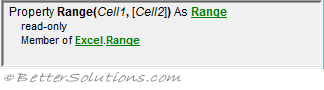
Excel.Range. The Range property can accept two parameters (one which is optional).
 |
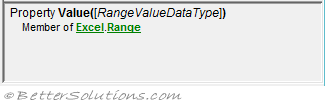
Excel.Range.Value. The Value property can accept one parameter (which is optional).
 |
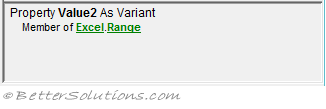
Excel.Range.Value2. The Value2 property can accept two parameters (which are both optional).
 |
Default Properties and Optional Parameters
Before trying to understand parameterized properties you need to have a good understanding of the following:
Default Properties - In VBA there are default properties but in C# you must be explicit.
The following two lines are equivalent because Value is the default property.
Worksheet.Range("A1") = "text"
Worksheet.Range("A1").Value = "text"
The following two lines are equivalent because Item is the default property.
Worksheet.Range("A1:B10").Cells(5)
Worksheet.Range("A1:B10").Cells.Item(5)
Optional Parameters - In VBA there are plenty of properties with optional parameters.
The following two lines are equivalent because xlRangeValueDefault is the default value for the optional parameter.
Worksheet.Range("A1").Value
Worksheet.Range("A1").Value(xlRangeValueDataType.xlRangeValueDefault)
Range.Value2 - This property does not have any parameters unlike the Range.Value property
The only difference is that Value2 does not support the Currency and Date data types.
If values are formatted with either of these data types they are returned as Double.
In most cases the following two lines are equivalent.
Worksheet.Range("A1").Value = "text" 'in VBA
Worksheet.Range("A1").Value2 = "text" 'in VBA
Indexer Syntax
Introduced in C# 4.0 / Visual Studio 2010 you can call parameterized properties using the Indexer syntax.
This feature just provides a shorthand syntax to the get and set accessor methods.
Any objects that have properties that accept parameters have been extended to use indexer syntax.
An indexer enables you to access the property in the same way you would access an array, ie by using square brackets instead of curved brackets.
The following code snippet shows how this is achieved in C#.
Excel.Worksheet myWsheet;
Excel.Range myRange;
myWsheet = Globals.ThisAddIn.Application.ActiveSheet;
myRange = myWsheet.Range["A1"];
myRange = myWsheet.Range["A1","B1"];

//assign one range to another range
myWsheet.Range["A1"].Value = myWsheet.Range["B1"].Value;

//put text into a range
myWsheet.Range["A1"].Value = "text";

//pull text from a range (using cells)
string sText1 = myWsheet.Cells[1, 1].Value;

//access the 5th cell in a range
myRange = myWsheet.Range["A1:B10"].Cells.Item[5];

//display a built-in dialog box
Application.FileDialog[Office.msoFileDialogType.msoFileDialogFolderPicker].Show();
Get and Set Accessor Methods
You can call parameterized properties using the Get and Set accessor methods.
If you want to get the value of a parameterized property then you can use the method which has the "get_" prefix.
If you want to set the value of a parameterized property then you can use the method which has the "set_" prefix.
myRange = myWsheet.get_Range("A1");
myRange = myWsheet.get_Range("A1", System.Type.Missing);
myRange = myWsheet.get_Range("A1","B1");

//assign one range to another range
myWsheet.get_Range("A1").set_Value(myWsheet.get_Range("B1"));

//put text into a range
myWsheet.get_Range("A1").set_Value("text");
myWsheet.get_Range("A1", System.Type.Missing).set_Value("text");

//pull text from a range (using cells)
string sText2 = myWsheet.Cells.get_Item(1,1).get_Value();

//access an individual cell in a range
myRange = myWsheet.Range["A1:B10"].Cells.get_Item(5);

//display a built-in dialog box
Application.get_FileDialog(Office.msoFileDialogType.msoFileDialogFolderPicker).Show();
.NET Framework 3.5
Visual Studio 2008 included a set of additional assemblies called the Office Interop API Extensions
The Office Interop API Extensions are libraries that make working with optional parameters, variant types and parameterized properties easier in C#.
These were part of the VSTO Power Tools.
VSTO Document Level
A small number of the COM objects were accessible using the Indexer Syntax prior to C# 4.0 / Visual Studio 2010.
VSTO document-level projects included a number of objects that has been extended by VSTO.
These parameterized properties could be called using the Indexer Syntax.
One of these objects was the VSTO Range object.
Programming Word
There are far less parameterized properties in Word than Excel.
In Word the get_ and set_ accessor methods are hidden and do not appear in the intellisense or the object browser.
The get and set accessor methods accept Variant parameters.
For example the Style property is one such property.
Word.Range objRange
Object objStyle = "Normal";

objRange.set_Style(ref objStyle);
objRange.get_Style();
object objFile = "myfile.doc";
Application.Documents.get_Item(ref objFile).Save();
You can pass either a string or an integer to this method because C# can automatically convert value types to object types.
This automatic conversion is called "boxing".
An instance of an object called a box is created to contain the value type.
Important
VB.Net (unlike C#) supports default properties.
VB.Net (unlike C#) supports parameterized properties.
For more information about C# indexers, please refer to the Classes > Indexed Properties page.
VSTO - Office Interop API Extensions
Available in .NET Framework 3.5.
These are a set of additional interop assemblies that can be referenced to make working with COM Interop easier.
These are installed as part of the VSTO Power Tools.
The Office Interop API Extensions are libraries that make working with optional parameters, variant types and parameterized properties easier when writing C# VSTO..
VSTO - C# Method Overloads
Eliminates the use of System.Type.Missing
Eliminates the use of Variant
VSTO - C# Optional Parameters
Creates a single argument class that contains all the necessary parameters.
Provides you with an equivalent to optional parameters
This functionality was added in Visual Studio 2010.
For more details, refer to Optional Parameters
VSTO - C# Parameteried Properties
Uses extension methods to remove the _get and _set methods.
This functionality was added in Visual Studio 2010.
Inclusion List
This list can be found in the registry
Every time a user makes a trust decision due to a prompt that decision is recorded in the registry
HKCU\Software\Microsoft\VSTO\Security\Inclusion\
For each solution that is trusted, a key with a GUID identifier is added
An inclusion list entry includes the Public Key for the solution and the URL to the deployment manifest for the solution.
The Public Key corresponds to the RSAKeyValue element in the VSTO deployment manifest file.
This list can be edited programmatically using the following namespace
Microsoft.VisualStudio.Tools.Office.Runtime.SecurityAddInEntrySecurity class in the Microsoft.VisualStudio.Tools.Office.Runtime.v90 assembly
more details - bb398239.aspx
When a VSTO solution is published and installed, if the solutions certificate is not explicitly trusted a trust prompt that asks the user is they want to install the solution will occur.
Visual Studio 2008 also automatically creates inclusion list entries for locally-built VSTO customisations on your development computer.
Deleting this entries means the solution will not be trusted and trust prompt will occur in the solution is still registered when the customisated application is next opened
When a VSTO solution is built, a certificate must be used to sign the solution.
If a valid certificate is not provided then a temporary "self-cert" certificate is created, added to the project and then copied into the users current user's personal store.
Inclusion lists enable users to grant trust to VSTO solutions that are signed with a certificate that identifies the publisher
Inclusion lists are user-specific and can be used for both application and document level solutions.
When a user starts a VSTO solution that has not been granted trust a trust prompt is displayed
SS
A valid inclusion list has two parts
1) a path to the development manifest
2) a public key used to sign the solution
When a VSTO solution runs the public key from the inclusion list is compared with the signed key in the development manifest
If you want to add your solution to the inclusion list without prompting the user, you can add the solution programmatically.
InclusionListCustomActions - custom actions that call InclusionAPIs to pretrust your solution.
This inclusion list is a list of registry entries
using Microsoft.VisualStudio.Tools.Office.Runtime.Security
Untrusted Publisher List ?
Trusted Publisher List ?
Internet Explorer Restricted Zone ?
These enable users to grant trust to office solutons that are signed with a digital signature
They are user specific and can be used with both document level and application level solutions
The registry is used to contain an explicit list of solutions that are trusted
If you want to add a solution to the inclusion list without prompting the user you can do this programmatically
A valid inclusion list has two parts:
1) Path to deployment manifest
2) Public key used to sign the manifest
When the office solution runs, Office compares the public key from the inclusion list with the signed key in the deployment manifest
VSTO Power Tools
Not to be confused with Visual Studio Productivity Power Tools.
This collection included the Office Interop API Extensions designed specifically for C# developers.
This set of tools was designed to be used with Visual Studio 2008 / C# 3.0 / .NET Framework 3.5
This collection of tools only works with Visual Studio 2008 and Office 2007.
'blogs.msdn.com/b/andreww/archive/2008/02/21/vsto-vsta-power-tools-v1-0.aspx
Download from Microsoft
'microsoft.com/en-us/download/details.aspx?id=7805
Installs to: C:\Program Files\Microsoft VSTO Power Tools 1.0\
This installs:
| VSTO_PTExtLibs.exe | Office Interop API Extensions (Visual Studio 2008 and above) |
| VSTO_PTRibbonIDs.exe | Ribbon IDs Tool Window (only Visual Studio 2008) |
| VSTO_PT.exe | Collection of 6 programs, see below (only Visual Studio 2008) |
VSTO_PTExtLibs.exe
Installs to: C:\Program Files\Microsoft VSTO Power Tools 1.0\Office Interop Extensions\ VSTO_PTExtLibs.exe
Office Interop API Extensions - This is a set of libraries that extend the Office object model. Please refer to Office Interop API Extensions.
Custom UI Manager
VSTO_PTRibbonIDs.exe
Installs to: C:\Program Files\Microsoft VSTO Power Tools 1.0\Ribbon IDs\ VSTO_PTRibbonIDs.exe
This was only available for Visual Studio 2008.
Ribbon IDs Tool Window - (Visual Studio Add-in) provides an additional tool window that displays all the reusable office images and their IDs.
If you are using the ribbon designer you can click on a button and paste it into the OfficeImageId property.
If you are using the ribbon.xml text file you can drag and drop.
Tools > ImageMsoWindow
SS
Some Office images have multiple image sizes (16x16, 24x24, 32x32)
This tool renders all images in either 16x16 or 32x32 regardless of the images original size
There is also a simple search capability which will return a set of images where a string is found within the image ID string.
VSTO_PT.exe
Installs to: ?? \ VSTO_PT.exe
This was only available for Visual Studio 2008.
VSTO 2008 Troubleshooter - A standalone GUI tool that can be used as a Client troubleshooter for Office 2007. For more details about client troubleshooter tools, please refer to Client Troubleshooter.
VSTO Developer Cleanup - A standalone GUI tool that will display all inclusion list entries, temporary certificates in the users personal store and all registry keys that contain the "|vstolocal" tag. The built-in Clean removes most of the output files from the target folder and most of the registry entries but not all of them. The VSTODeveloperCleanupTool.exe can be easily copied to another PC and double clicked although it does require Visual Studio 2008 to be installed.
Open XML Package Editor - (Visual Studio Add-in) This allows parsing and editing of any Office Open XML packaging file (including Excel, Word and PowerPoint documents). This is an easy treeview-based tool for adding, removing, importing, exporting Open XML files.
Office Custom UI Manager - A class library that contains a set of classes for coordinating multiple instances of Ribbon, custom task pane and custom form region objects.
Pipeline Verifier - A standalone GUI tool that reflects over custom pipeline assemblies to validate the complete VSTA pipeline.
SharePoint Workflow Package Generator - A console based tool for packaging SharePoint workflow projects so they can be deployed.
SharePoint Feature Sweeper - A standalone GUI tool that cleans up unwanted SharePoint features from a developers environment.
Client Troubleshooter
There are no equivalent tools for Office 2010 or later
AddInSpy - Office 2007 + Office 2003
This tool is unsupported
'msdn.microsoft.com/en-us/library/office/cc984533.aspx
Downloads tab
download the zip - extract it to c:\program files\addinspy
Client Troubleshooter - Office 2007
This is also called VSTO Troubleshooter
This is part of the Power Tools
Installs to C:\Program Files\Microsoft VSTO Power Tools 1.0\VSTO Troubleshooter\VSTOTroubleshooter.exe
Client Troubleshooter - Office 2003
This tool has been created by the VSTO product support team and can be used to analyse a client's machine to determine if all the necessary software is installed to be able to run a deployed VSTO solution.
This can only be installed if you have Office 2003 installed
Microsoft Pss VSTO 2005 Client Troubleshooter Tool
SS
Installs to: C:\Program Files\Microsoft Pss VSTO 2005 Client Troubleshooter\PSS VSTO2005 Tshooter.exe
This tool can be found by searching in the Microsoft Download Center.
If everything is installed correctly you will see all green (check marks) symbols across the top section
If there is any yellow then more information is provided below
Top section - details on the operating system and .NET version(s)
Middle section - details on the different Office products and the PIAs installed.
Bottom section - details on the VSTO runtime and PIAs installed via the redistributable MSI file
Code Access Security
This applied to Visual Studio 2005.
In Visual Studio 2008 this was replaced with Inclusion Lists
One of the key security design principals of VSTO is that it is secure by default which means no code is allowed to run unless it has been given explicit permissions
You always have to instruct the .NET security model to trust your VSTO customisation or add-in before it will run on a users machine.
End users can change their macro settings for their Office applications or you can use Code Access Security (CAS) to do this for them.
These security measures make deployment more complex than VBA solutions because you must grant permissions to assemblies that you deploy.
When you deploy your add-in the add-in assembly and all references assemblies must be given full trust in the security policy for each end user.
The Microsoft Office object models (Excel and Word) have no way of partially trusting code.
These object models were designed to always be called by code that was fully trusted.
Therefore when a VSTO customisation assembly is loaded it must be granted full trust otherwise it wont run.
Code Access security prevents unauthorised access to protected resources and operations.
Code Access security can be used to do the following:
● restrict what your code can do
● restrict which code can call your code
● identify code
Every time an assembly is loaded the code access security model determines what permission set should be granted to that assembly.
Code access security uses code groups to manage permissions
CAS determines whether code is safe to run based on criteria such as the location of the code, whether the code is signed and the permissions that have been set by the administrator.
For a solution to run you must set the Code Access Security policy.
There are two ways to do this:
1) Using the caspol.exe command line utility.
2) Using the .NET Configuration Tool
Neither the Publish Wizard or the Setup projects will set the security policy for you automatically or check that the client machine is set up correctly.
Code Groups
A code group is way of identifying code based on a specific condition.
For example you might have:
● a code group representing all code from a particular website
● a code group representing all code that has a particular strong name
● a code group representing just a specific assembly
There are several built-in code groups
Zones describe where the code comes from.
● My_Computer_Zone -
● LocalIntranet_Zone -
● Internet_Zone -
Evidence
Evidence determines whether the code belongs to a particular code group.
● Types of evidence
● Site -
● Strong Name -
● Zone -
● URL - evidence most commonly used by VSTO
● Certificates -
This is a configurable set of rules that determine what permissions to grant to code.
The permissions that a particular assembly receives is the intersection of the permission sets allowed by these three policies
Within a policy level, the permission is granted to an assembly is (usually) the least-restrictive union of all the applicable code groups.
Each policy level is represented by a hierarchical structure of code groups.
Every code group has a membership condition that determines which code is a member of that group.
A named permission set is also associated with each code group
This permission set specifies the run-time permissions allowed when the membership condition is satisfies
There are four different policy levels and each level has its own code groups and permission sets
The set of permissions that an assembly receives is determined by the intersection of the permission sets
● Enterprise - all managed code in an enterprise setting
● Machine - all managed code on the computer
● User - all managed code in all processes associated with the current user
● Application - (or Application Domain) all managed code in the hosts application domain. This level can strengthen the overall security policy by requiring more stringent evidence than the other 3 policy levels.
SetSecurity Project
This project just calls the caspsol tool and grants full trust to your solution assembly.
This project is extremely useful when you are deploying VSTO add-ins.
Creates a new Code Group on the Install method
Removes this code group on the RollBack and Uninstall methods
This code group must be unique
Download a copy and paste it into your solution folder.
Right mouse click on solution and select (Add > Existing Project)
1) Add the primary output
Right mouse click on the Setup project and select
(Add > Project Output)
Select "SetSecurity" and "Primary Output", click OK
2) Create Custom Actions for the Install
Right mouse click on the Setup project and select
(View > Custom Actions)
In the Custom Actions editor, click on Install
Right click and select "Add Custom Action"
Click on Application Folder and select "Primary output for SetSecurity (Active)"
click OK
CustomAction property
SS - code
3) Create the Custom Action for the Rollback
In the Custom Actions editor, click on Rollback
Right click and select "Add Custom Action"
Click on Application Folder and select "Primary output for SetSecurity (Active)"
click OK
CustomAction property
SS - code
3) Create the Custom Action for the Uninstall
In the Custom Actions editor, click on Rollback
Right click and select "Add Custom Action"
Click on Application Folder and select "Primary output for SetSecurity (Active)"
click OK
CustomAction property
SS - code
© 2026 Better Solutions Limited. All Rights Reserved. © 2026 Better Solutions Limited TopPrev